You have a document you need to share as a PDF. But should you start from a .txt file or a .docx file? The answer depends on what you're trying to accomplish — and the difference matters more than you might think.
This guide breaks down the strengths of each approach, compares them side by side, and helps you pick the right workflow for your specific use case.
TXT vs DOCX: What's Actually Different?
Before comparing conversion workflows, it helps to understand what each file format actually contains.
Plain Text (.txt)
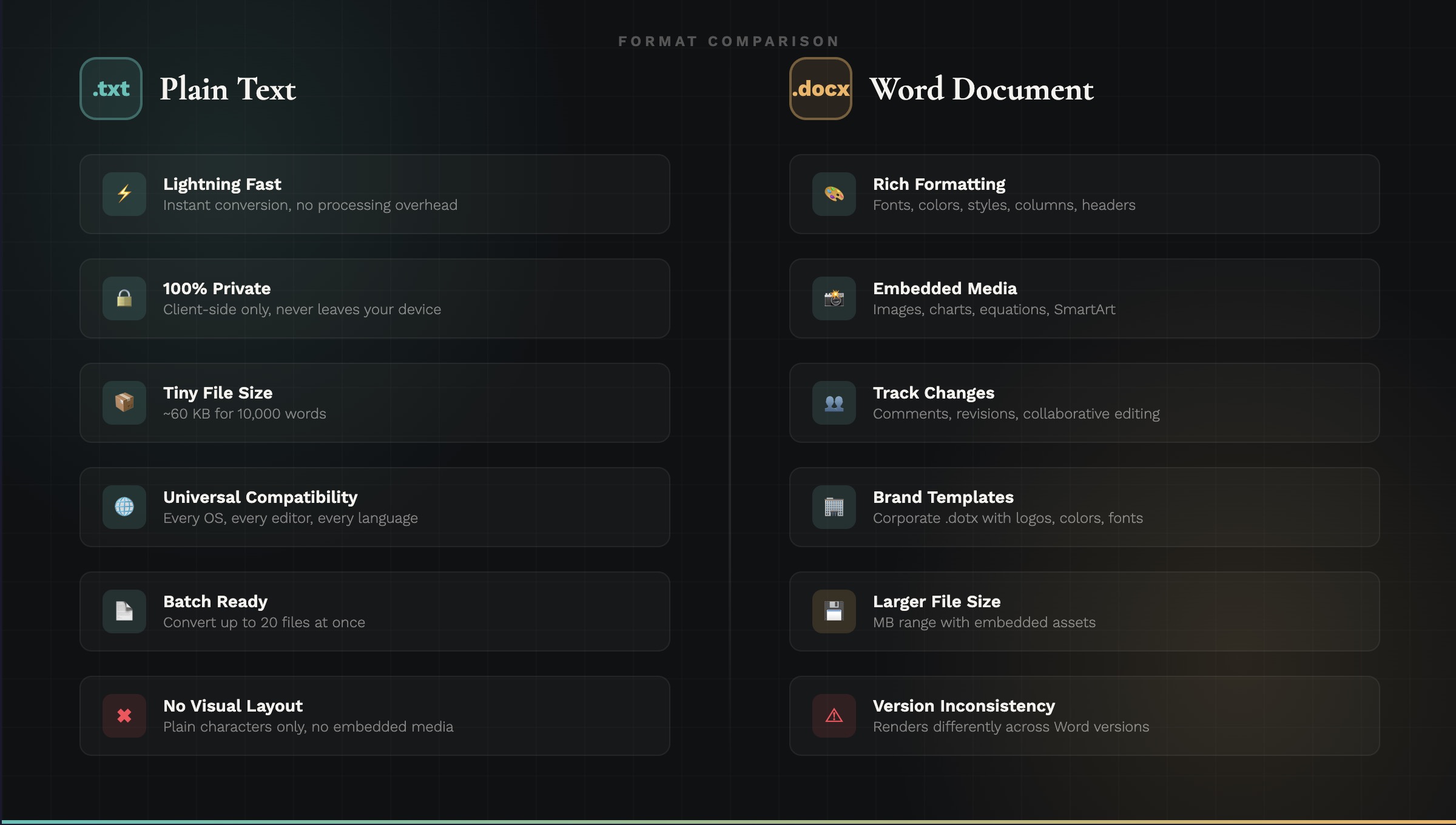
A .txt file is raw text — nothing more. No fonts, no colors, no images, no page breaks. Every character is stored as-is, making it:
- Tiny in file size — A 10,000-word document is roughly 60 KB.
- Universally compatible — Every operating system, every text editor, every programming language can read it.
- Human-readable at the byte level — Open it in any hex editor and you'll see the actual characters.
- Version-control friendly — Git, SVN, and other tools can diff and merge
.txtfiles line by line.
Word Document (.docx)
A .docx file is a ZIP archive containing XML files that describe formatting, styles, embedded media, and document structure. It includes:
- Rich formatting — Fonts, colors, sizes, spacing, headers, footers, page numbers.
- Embedded assets — Images, charts, SmartArt, equations.
- Document metadata — Author, revision history, comments, tracked changes.
- Complex layout — Columns, tables, section breaks, margins per section.
The extra capability comes at a cost: larger file sizes, software dependency, and potential compatibility issues across different Word versions.
When TXT-to-PDF Is the Better Choice
Plain text conversion wins in scenarios where simplicity, speed, and reliability matter more than visual complexity.
1. Quick, No-Fuss Conversion
You have meeting notes, a log file, a code snippet, or a README that needs to become a PDF. You don't need fancy formatting — you need it done in 10 seconds.
With TextToPDF.me, you paste or type your text, choose a font and page size, and download the PDF. No software to install, no file to upload to a cloud service, no account to create.
2. Sensitive or Confidential Content
Plain text conversion can happen entirely in your browser. TextToPDF.me processes everything client-side — your text never leaves your device. No server upload, no cloud processing, no data retention.
Word-to-PDF conversion often requires uploading your .docx to a third-party service (Google Docs, Adobe, Smallpdf, etc.), which means your content passes through someone else's servers. For legal drafts, financial records, medical notes, or proprietary code, that's a meaningful risk.
3. Batch Processing
Need to convert 15 log files into PDFs for archiving? The TXT to PDF batch converter handles up to 20 files per session. Drop them all in, configure settings once, and download the results.
Batch-converting .docx files typically requires Microsoft Office automation, a paid API, or command-line tools like LibreOffice — all of which involve setup overhead.
4. Consistent, Predictable Output
Plain text has no hidden formatting surprises. What you see is what you get. There are no style conflicts, no inherited template settings, no "why is this paragraph indented differently" mysteries.
Word documents, by contrast, accumulate formatting debris — especially when content is pasted from multiple sources. The resulting PDF can have inconsistent fonts, unexpected spacing, or phantom page breaks.
5. Developer and Technical Workflows
Developers work with plain text constantly: config files, scripts, documentation, changelogs, CI/CD outputs. Converting these to PDF for stakeholder review or compliance documentation is a natural fit for TXT-to-PDF tools.
6. Multilingual Documents
TextToPDF.me supports the Noto Sans font family, which covers Chinese, Japanese, Korean, Arabic, Hebrew, Cyrillic, and virtually every Unicode script. If your plain text contains multilingual content, you can generate a correctly rendered PDF without worrying about font embedding issues that plague Word-to-PDF conversion.
When Word-to-PDF Is the Better Choice
Word conversion wins when your document requires visual complexity that plain text simply can't express.
1. Complex Visual Layouts
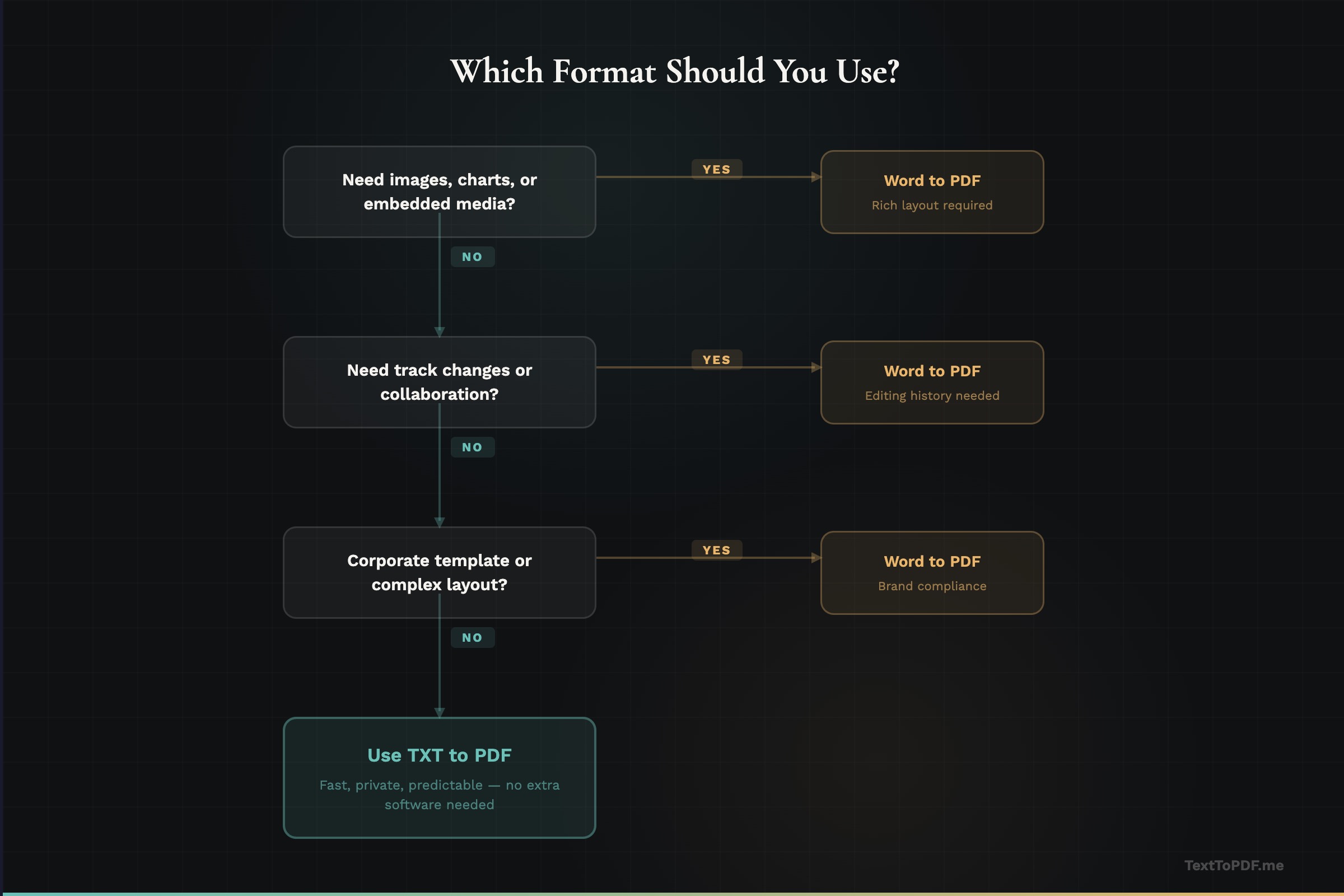
If your document has multi-column layouts, text wrapped around images, styled headers with background colors, or decorative elements, Word is the right starting point. A .txt file can't represent any of this.
2. Embedded Media
Documents with charts, diagrams, photographs, or equations need Word (or a similar rich editor). Plain text is limited to characters.
3. Brand-Consistent Documents
Corporate templates with specific fonts, colors, logo placements, and footer styles are built in Word. If your organization has a .dotx template that enforces brand guidelines, starting from Word ensures compliance.
4. Collaborative Editing History
Word's track changes, comments, and revision history are valuable in legal, editorial, and academic workflows. If you need to show who changed what before generating the final PDF, Word is the tool for the job.
5. Headers, Footers, and Page Numbers
While TextToPDF.me handles clean page breaks and margins, Word offers per-section headers and footers, automatic page numbering, and different first-page layouts — features essential for formal reports and long documents.
Side-by-Side Comparison
| Factor | TXT to PDF | Word to PDF |
|---|---|---|
| Speed | Instant — paste and download | Requires Word or upload to converter |
| File size (source) | Tiny (KB) | Larger (MB with media) |
| Privacy | Client-side, no upload | Often requires cloud service |
| Formatting control | Font, size, margins, line height | Full visual layout |
| Batch conversion | Built-in (up to 20 files) | Requires automation tools |
| Embedded images | Via rich text editor | Native support |
| Tables | Via rich text editor | Native support |
| Track changes | Not applicable | Full support |
| Software required | Browser only | Word, LibreOffice, or cloud app |
| Cost | Free | Free (Google Docs) to paid (Office) |
| Consistency | 100% predictable | Varies by Word version |
| Multilingual | Full Unicode via Noto Sans | Depends on installed fonts |
The Hybrid Approach: Start Simple, Upgrade If Needed
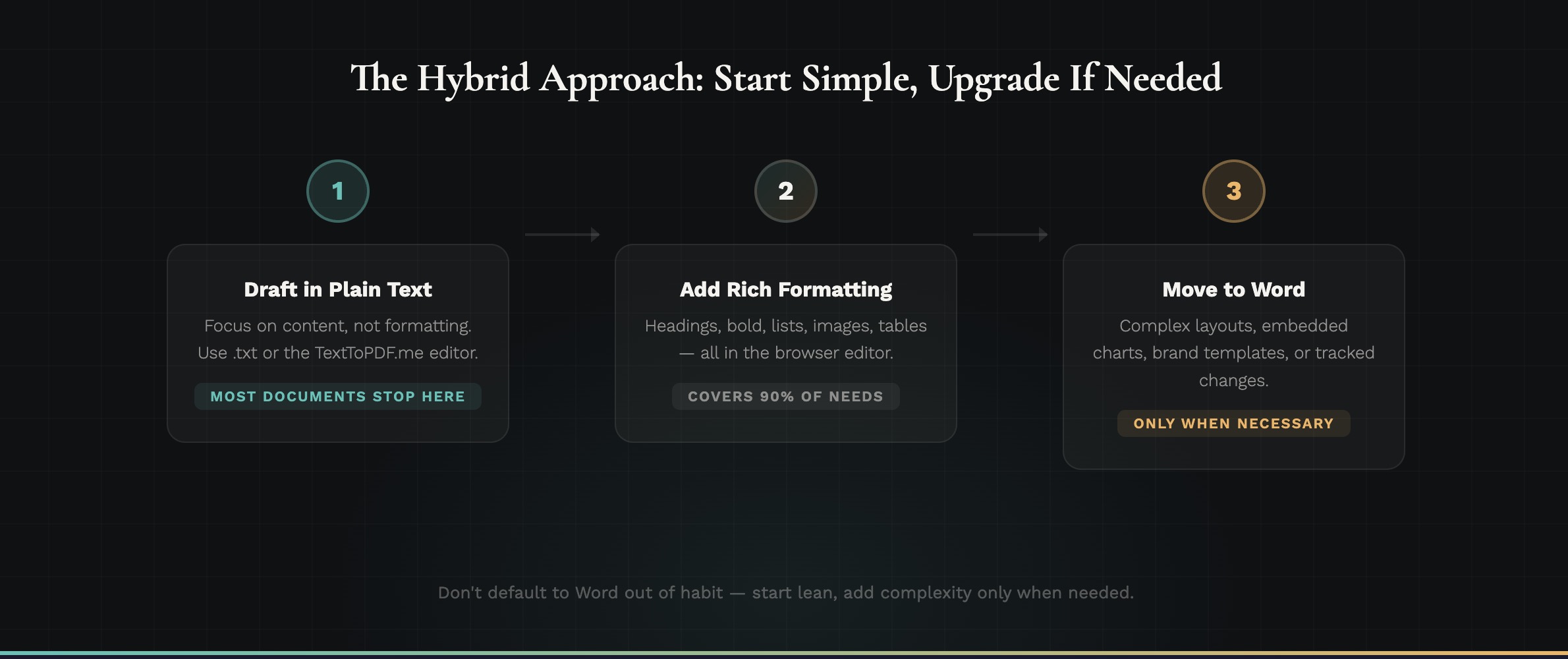
For many documents, the smartest workflow is:
-
Start with plain text. Draft your content in a
.txtfile or directly in the TextToPDF.me editor. Focus on the words, not the formatting. -
Use the rich text editor for moderate formatting. TextToPDF.me's editor supports headings, bold, italic, lists, links, images, and tables — enough for most professional documents without touching Word.
-
Move to Word only when necessary. If you genuinely need complex layouts, embedded charts, or corporate template compliance, open Word. But don't default to it out of habit.
This approach saves time, reduces software dependency, and keeps your workflow lean.
Common Scenarios: Which Should You Pick?
| Scenario | Recommendation |
|---|---|
| Meeting notes → PDF for team | TXT to PDF |
| Academic paper with citations | Word to PDF |
| Server log files → archive | TXT to PDF (batch) |
| Sales proposal with branding | Word to PDF |
| Code documentation → PDF | TXT to PDF |
| Contract with tracked changes | Word to PDF |
| Quick memo or announcement | TXT to PDF |
| Annual report with charts | Word to PDF |
| Multilingual content | TXT to PDF (Noto Sans) |
| Resume with custom layout | Word to PDF |
| README or changelog | TXT to PDF |
| Investor deck supplement | Word to PDF |
Making the Most of TXT-to-PDF Conversion
If you decide TXT to PDF is the right fit, here are settings tips for professional results:
- Business documents: A4/Letter, Helvetica 12pt, 1.5x line height, 40pt margins.
- Academic or formal: Letter, Times Roman 12pt, 2.0x line height for annotation space.
- Technical/code docs: A4, Courier 10pt, 1.3x line height for density.
- International documents: A4, Noto Sans 12pt for full Unicode coverage.
Use the preview feature to verify the output before downloading — scroll through every page to catch formatting issues.
The Bottom Line
Use TXT to PDF when: You need speed, privacy, simplicity, batch processing, or predictable output. Plain text conversion is faster, safer, and more reliable for documents that don't require visual complexity.
Use Word to PDF when: Your document requires rich visual layout, embedded media, collaborative editing features, or corporate template compliance.
Most people default to Word out of habit, even for documents that don't need it. If your content is primarily text — and most content is — TextToPDF.me gets you to a professional PDF faster, with zero software overhead and complete privacy.