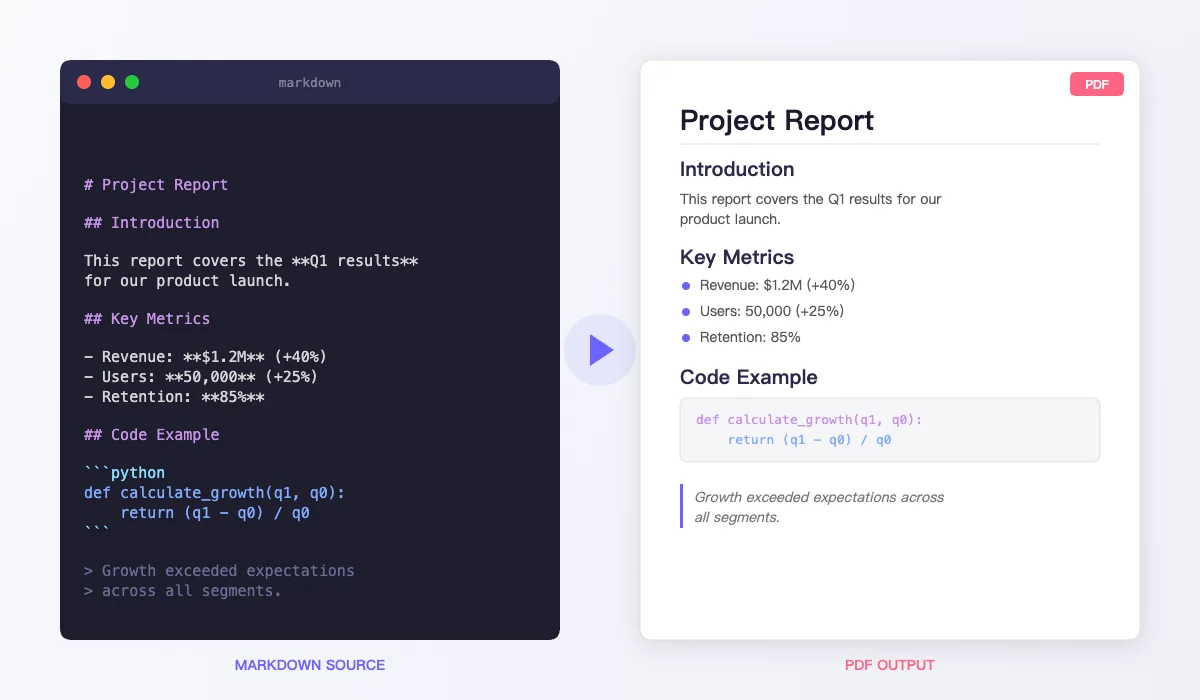
Markdown is the go-to format for developers, technical writers, and anyone who values clean, readable text. But when it's time to share your work — with a client, a professor, or a hiring manager — you need a PDF. Converting Markdown to PDF gives you a polished, universally readable document in seconds.
This guide shows you how to convert Markdown to PDF using TextToPDF.me — a free online Markdown PDF converter that works entirely in your browser. We'll cover every supported Markdown feature, formatting tips, and common pitfalls to avoid.
Why Convert Markdown to PDF?
Markdown is great for writing. PDF is great for sharing. Here's why converting Markdown to PDF matters:
- Universal readability — Not everyone has a Markdown renderer. Everyone can open a PDF.
- Consistent formatting — Your headings, code blocks, and tables look identical on every device.
- Print-ready — PDFs preserve page breaks, margins, and typography exactly as designed.
- Professional presentation — A
.mdfile feels like a draft. A PDF feels like a finished document. - Archival format — PDFs are self-contained and don't depend on external stylesheets or rendering engines.
If you've ever sent a .md file and gotten a confused reply — "I just see a bunch of hashtags and asterisks" — converting MD to PDF solves that problem permanently.
How to Convert Markdown to PDF (Step by Step)
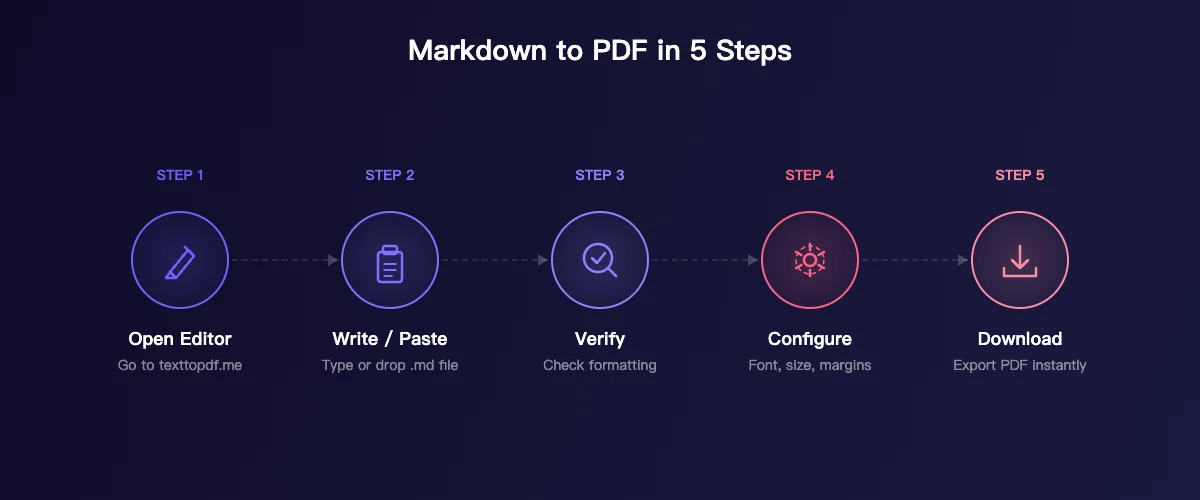
Our free Markdown to PDF converter at TextToPDF.me includes a full Markdown-aware editor that renders your formatting in real time and exports to PDF with one click. Here's how to convert Markdown to PDF in 5 simple steps.
Step 1: Open the Editor
Go to texttopdf.me to open the Markdown to PDF converter. The editor loads instantly — no account, no installation, no paywall.
Step 2: Write or Paste Your Markdown
Type Markdown directly into the editor, or paste an existing .md file's contents. The editor recognizes Markdown syntax and renders it as formatted text in real time.
You can also drag and drop a .md or .txt file directly onto the editor — the contents load automatically.
Step 3: Verify Your Formatting
The editor renders Markdown as you type. Check that your headings, lists, code blocks, links, and images appear as expected before exporting.
Step 4: Configure PDF Settings
Click the Preview / Download button to open the PDF configuration panel:
| Setting | Options | Recommended for Markdown |
|---|---|---|
| Page Size | A4, Letter, A5, A3 | A4 (international) or Letter (US) |
| Font | Helvetica, Times Roman, Courier, Noto Sans | Helvetica for docs, Courier for code-heavy content |
| Font Size | 8–24 pt | 11–12 pt |
| Line Height | 1.0–3.0x | 1.5x |
| Margins | 0–100 pt per side | 40–50 pt |
Step 5: Preview and Download
Scroll through the live preview to verify page breaks and layout. When everything looks right, click Download PDF to complete the Markdown to PDF conversion. The file is generated entirely in your browser — your content never leaves your device.
Supported Markdown Syntax
Our Markdown PDF converter supports the full range of Markdown formatting. Here's what you can use and how it renders when you convert Markdown to PDF.
Headings
# Heading 1
## Heading 2
### Heading 3
#### Heading 4
##### Heading 5
###### Heading 6
Each heading level renders at a progressively smaller size with appropriate spacing. Use H1 for your document title, H2 for major sections, H3 for subsections. Don't skip levels — go H1 → H2 → H3, not H1 → H4.
Text Formatting
**Bold text**
*Italic text*
~~Strikethrough~~
**_Bold and italic_**
These inline styles carry over to the PDF exactly as rendered in the editor.
Lists
Unordered lists:
- First item
- Second item
  - Nested item
  - Another nested item
- Third item
Ordered lists:
1. First step
2. Second step
3. Third step
Task lists:
- [x] Completed task
- [ ] Pending task
- [ ] Another pending task
Task lists render with checkboxes in the PDF — useful for checklists, project plans, and to-do lists.
Code
Inline code:
Use the `print()` function to output text.
Code blocks with syntax highlighting:
```python
def hello():
    print("Hello, world!")
```
Code blocks render in a monospaced font with background shading, making them visually distinct from body text in the PDF.
Links and Images
[Link text](https://example.com)

Links remain clickable in the generated PDF. Images are embedded directly — make sure your image URLs are accessible when converting.
Tables
| Feature | Supported |
|---------|-----------|
| Headings | Yes |
| Code blocks | Yes |
| Tables | Yes |
| Images | Yes |
Tables render with borders and header row styling in the PDF. Keep tables simple — avoid deeply nested content inside cells.
Blockquotes
> This is a blockquote.
> It can span multiple lines.
>
> > Nested blockquotes work too.
Blockquotes render with a left border and indentation, making them visually distinct from body text.
Horizontal Rules
---
A horizontal rule renders as a full-width line, useful for separating major sections.
Markdown to PDF Tips for Professional Results
Want your Markdown to PDF output to look truly professional? These tips make the difference between a mediocre PDF and a polished one.
- Start with a single H1 — This is your document title. Only use one H1 per document.
- Use H2 for major sections — Introduction, Methods, Results, Conclusion.
- Use H3 for subsections — Keep the hierarchy logical and consistent.
- Add blank lines between elements — A line before and after headings, lists, and code blocks improves readability.
Choose the Right Font for Markdown to PDF
The font you choose affects how your Markdown to PDF output reads and feels:
- Helvetica — Clean and modern. Best for business documents, READMEs, and general documentation.
- Times Roman — Formal and traditional. Good for academic papers or legal documents written in Markdown.
- Courier — Monospaced. Choose this if your Markdown is code-heavy (tutorials, API docs, technical specs).
- Noto Sans — Full Unicode coverage. Required for Markdown containing CJK characters, Arabic, or other non-Latin scripts.
Handle Long Code Blocks
Code blocks that exceed the page width will wrap in the PDF. To keep code readable:
- Keep lines under 80 characters when possible.
- Break long strings or URLs across multiple lines.
- Use comments to explain complex code rather than writing single ultra-long lines.
Preview Before You Export
Always check the live preview before downloading your Markdown to PDF output. Common issues to watch for:
- Unexpected page breaks splitting a table or code block.
- Images that are too wide for the page margins.
- Missing blank lines causing headings to merge with preceding paragraphs.
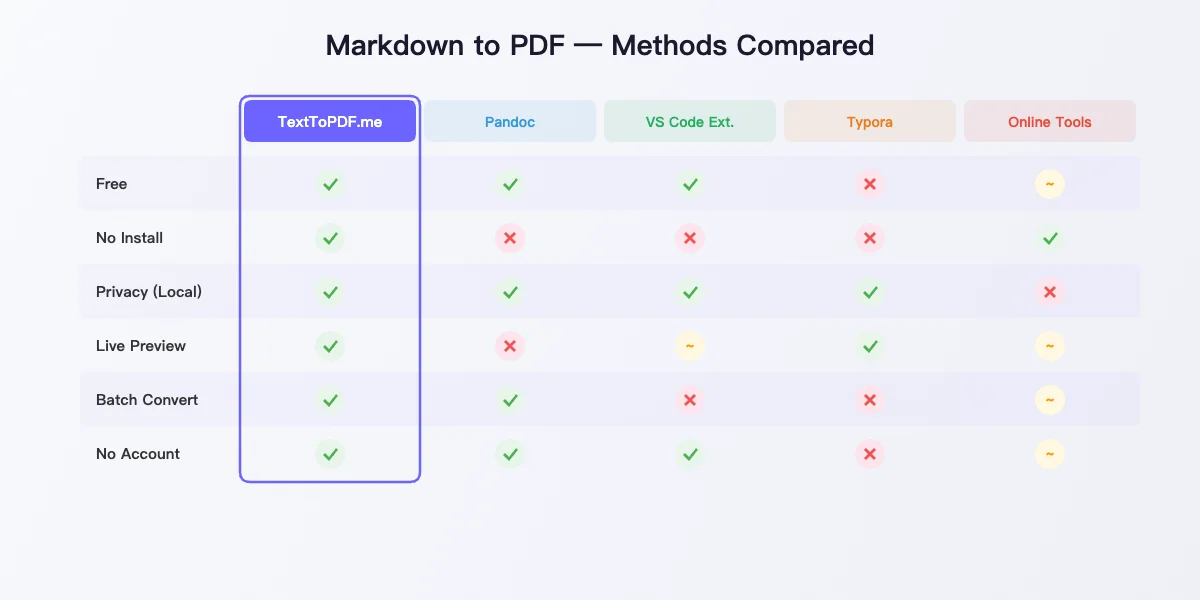
Markdown to PDF vs. Other Methods
| Method | Pros | Cons |
|---|---|---|
| TextToPDF.me | Free, instant, private (browser-based), live preview | No CLI automation |
| Pandoc | Powerful CLI, supports LaTeX | Requires installation, LaTeX setup for PDF |
| VS Code extension | Integrated in editor | Requires VS Code, inconsistent rendering |
| GitHub rendering | Automatic for README files | No PDF export, limited to GitHub |
| Typora | Beautiful WYSIWYG editor | Paid ($15), desktop only |
| Online converters | Easy to use | Upload your content to third-party servers |
TextToPDF.me fills a specific gap: instant, free, private Markdown to PDF conversion — no installation, no server upload, no account. If you need to convert MD to PDF quickly without compromising privacy, it's the best option.
Common Use Cases for Markdown to PDF
Here are the most common scenarios where you'd want to convert Markdown to PDF, along with recommended settings for each:
| Use Case | Recommended Settings |
|---|---|
| Project README → shareable PDF | A4, Helvetica 12pt, 1.5x line height |
| API documentation | A4, Courier 10pt, 1.3x line height |
| Meeting notes in Markdown | Letter, Helvetica 11pt, 1.5x line height |
| Academic paper (Markdown draft) | Letter, Times Roman 12pt, 2.0x line height |
| Technical tutorial / guide | A4, Helvetica 11pt, 1.5x line height |
| Resume written in Markdown | Letter, Helvetica 11pt, 1.4x line height |
| Changelog / release notes | A4, Courier 10pt, 1.3x line height |
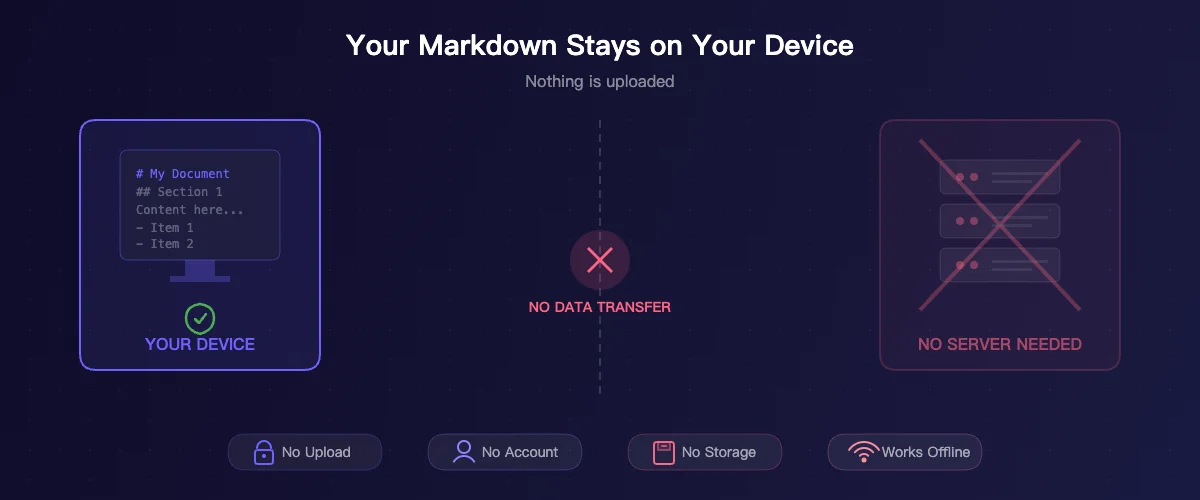
Privacy and Security
Every Markdown to PDF conversion on TextToPDF.me happens locally on your device:
- No upload — Your Markdown content stays on your device.
- No account — No email, no sign-up, no tracking.
- No storage — The PDF exists only in browser memory until you save it.
- Works offline — Once the page loads, you can disconnect and keep working.
This matters for Markdown files that contain sensitive content — internal documentation, security notes, credentials (which you should remove before converting), or proprietary code.
Frequently Asked Questions
Can I upload a .md file directly?
Yes. Drag and drop your .md file onto the editor, and the contents load automatically with Markdown rendering applied.
Does it support GitHub Flavored Markdown? Yes. Tables, task lists, strikethrough, and fenced code blocks all work — these are the most-used GFM extensions.
What about LaTeX math equations? LaTeX math rendering is not currently supported. For math-heavy documents, Pandoc with a LaTeX engine is a better fit.
Can I convert multiple .md files at once?
The TXT to PDF batch converter accepts .txt and .md files. Upload multiple Markdown files and convert them all in one session.
Is there a size limit? No hard limit. Very large documents (hundreds of pages) may take a few seconds to render depending on your device.
Does it preserve syntax highlighting in code blocks? Code blocks render in a monospaced font with visual distinction from body text. Full syntax highlighting with language-specific colors depends on the rendering engine.
Start Converting
Ready to convert Markdown to PDF?
- Open the Markdown to PDF Converter — Paste or type Markdown, preview, and export to PDF.
- Batch Convert MD to PDF — Upload multiple .md files and download PDFs.
No installation. No sign-up. No server upload. Just Markdown in, PDF out — the fastest way to convert Markdown to PDF online for free.