Need to turn text into a polished PDF? Whether it's meeting notes, a contract, or a school assignment, converting text to PDF gives your document a professional, universally readable format — and you can do it right now, for free, without installing anything.
This guide walks you through every feature of TextToPDF.me, shows you how to get the best results, and covers the TXT-to-PDF batch converter for handling multiple files at once.
Why Convert Text to PDF?
A .txt file looks different on every device. Fonts change, line breaks shift, formatting disappears. PDF fixes all of that:
- Pixel-perfect consistency — A PDF renders identically on Windows, macOS, iOS, Android, and Linux.
- Print-ready — PDFs preserve margins, page breaks, and layout exactly as designed.
- Universally accepted — Universities, employers, government agencies, and clients all expect PDF submissions.
- Tamper-resistant — Unlike editable text files, PDFs signal a finalized document.
If you've ever emailed a .txt file and had the recipient complain about garbled formatting, PDF is the answer.
Method 1: Rich Text Editor (Recommended)
The TextToPDF.me homepage features a full rich text editor that lets you format your content before generating the PDF. This is the best option when you want control over how the final document looks.
Step 1: Open the Editor
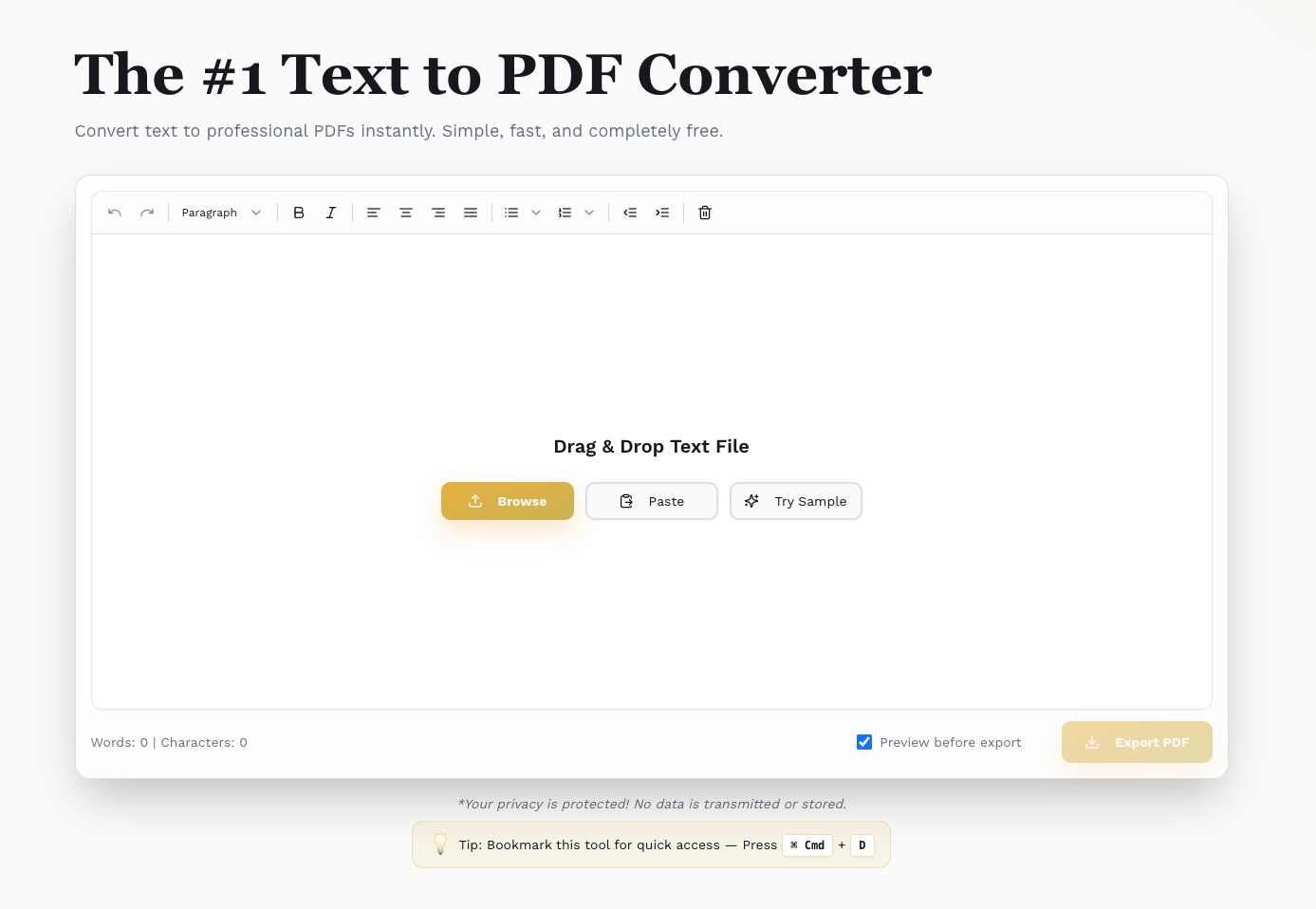
Go to texttopdf.me. The editor loads instantly — no account, no pop-ups, no cookie walls. You'll see a toolbar at the top and a blank editing area below.
Step 2: Write or Paste Your Content
Type directly into the editor, or paste text from any source. The editor preserves your paragraph structure automatically.
Rich formatting options available in the toolbar:
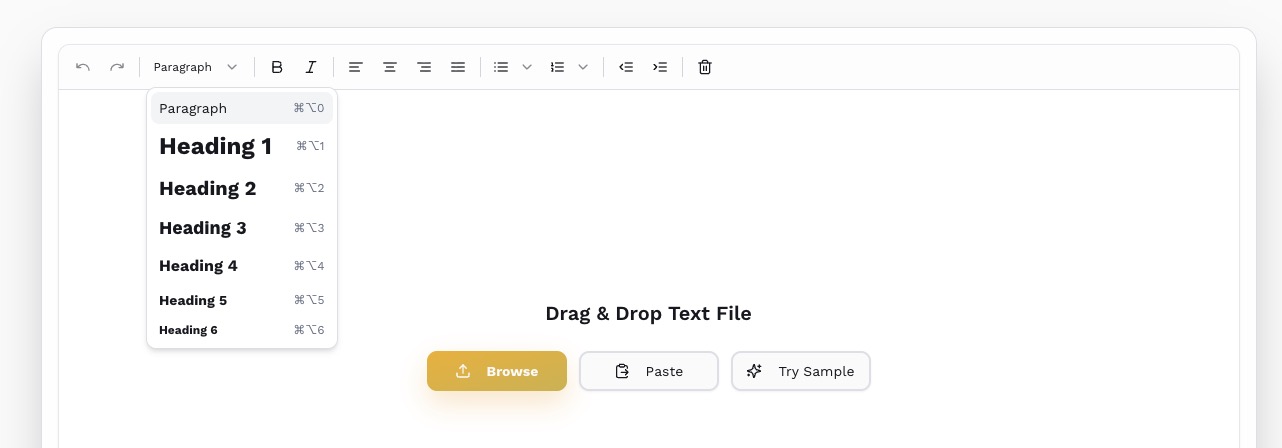
- Headings — Choose from H1 through H6 via the heading dropdown to create a clear document hierarchy.
- Bold, Italic, Underline, Strikethrough — Standard text formatting, accessible via toolbar buttons or keyboard shortcuts (
Ctrl+B,Ctrl+I,Ctrl+U). - Text Alignment — Left, center, right, or justify your text per paragraph.
- Bullet & Numbered Lists — Create ordered or unordered lists with a single click.
- Indent / Outdent — Adjust nesting levels for lists and paragraphs.
- Links — Insert clickable hyperlinks that remain active in the PDF.
- Images — Embed images directly into your document via the image dialog.
- Tables — Insert structured data tables with the table dialog.
Tip: You can also drag and drop a
.txtfile directly onto the editor. The tool reads the file contents and populates the editor automatically.
Step 3: Configure PDF Output
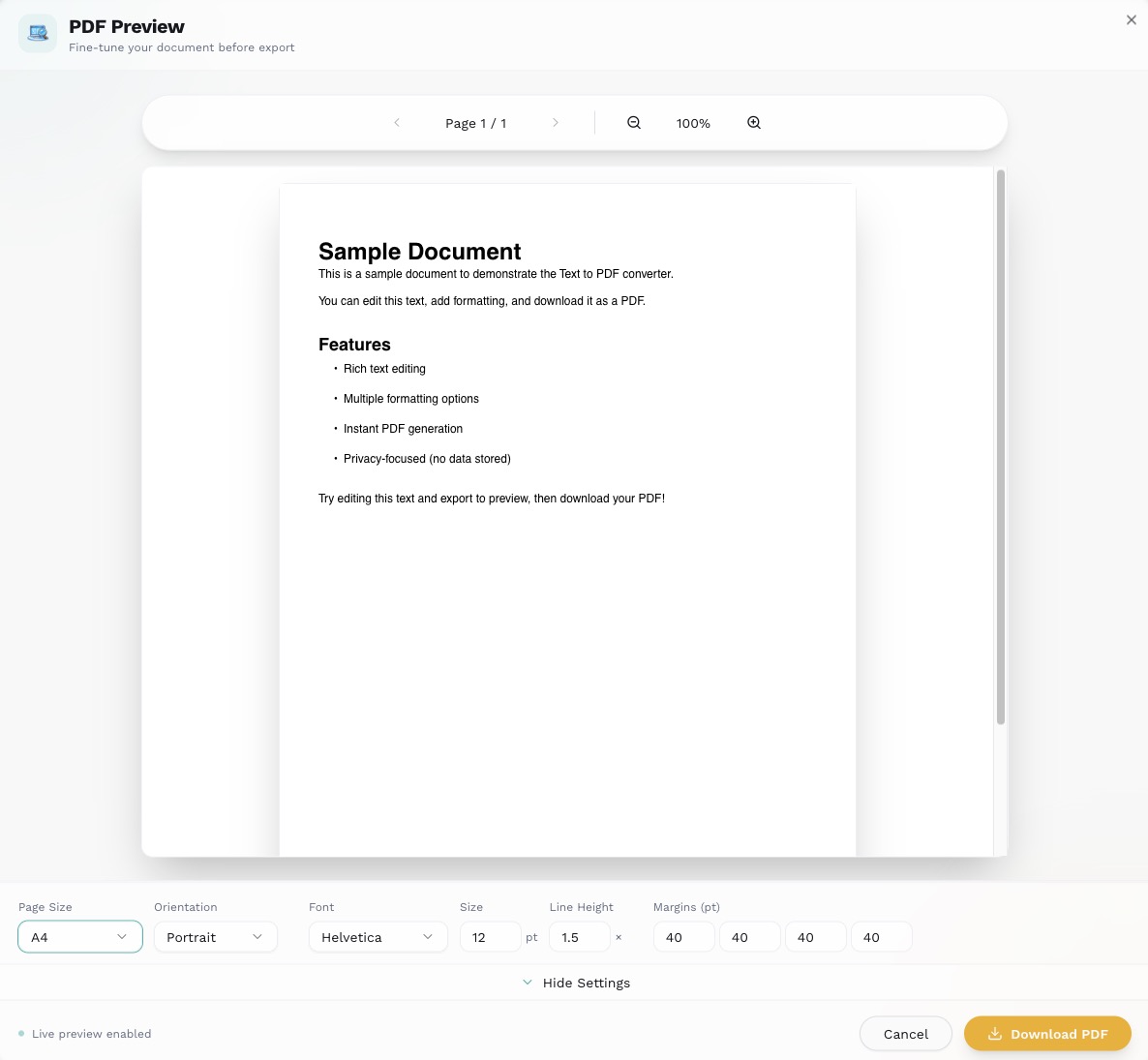
Click the Preview / Download button to open the PDF configuration panel. Here you control exactly how the final PDF looks:
| Setting | Options | Default |
|---|---|---|
| Page Size | A4, Letter, A5, A3 | A4 |
| Orientation | Portrait, Landscape | Portrait |
| Font | Helvetica, Times Roman, Courier, Noto Sans | Helvetica |
| Font Size | 8–24 pt | 12 pt |
| Line Height | 1.0–3.0x | 1.5x |
| Margins | Top, Right, Bottom, Left (0–100 pt) | 40 pt all sides |

Choosing the right page size:
- A4 (210 x 297 mm) — Standard worldwide. Use this if you're outside North America or distributing internationally.
- Letter (8.5 x 11 in) — Standard in the US and Canada.
- A5 (148 x 210 mm) — Half of A4. Good for booklets, handouts, or compact documents.
- A3 (297 x 420 mm) — Double A4. Useful for large tables, posters, or spreadsheet-style layouts.
Choosing the right font:
- Helvetica — Clean, modern sans-serif. Best for business documents, reports, and general use.
- Times Roman — Classic serif font. Preferred for academic papers, legal documents, and formal correspondence.
- Courier — Monospaced. Ideal for code snippets, technical documentation, or screenplay formatting.
- Noto Sans — Full Unicode support including Chinese, Japanese, Korean, Arabic, and other non-Latin scripts. Choose this if your text contains multilingual content.
Step 4: Preview and Download
The preview dialog shows you exactly what the PDF will look like before you download it. Scroll through pages, verify formatting, then click Download PDF.
The PDF is generated entirely in your browser. Your text never leaves your device — no server upload, no cloud processing, no data retention.
Method 2: TXT File Converter
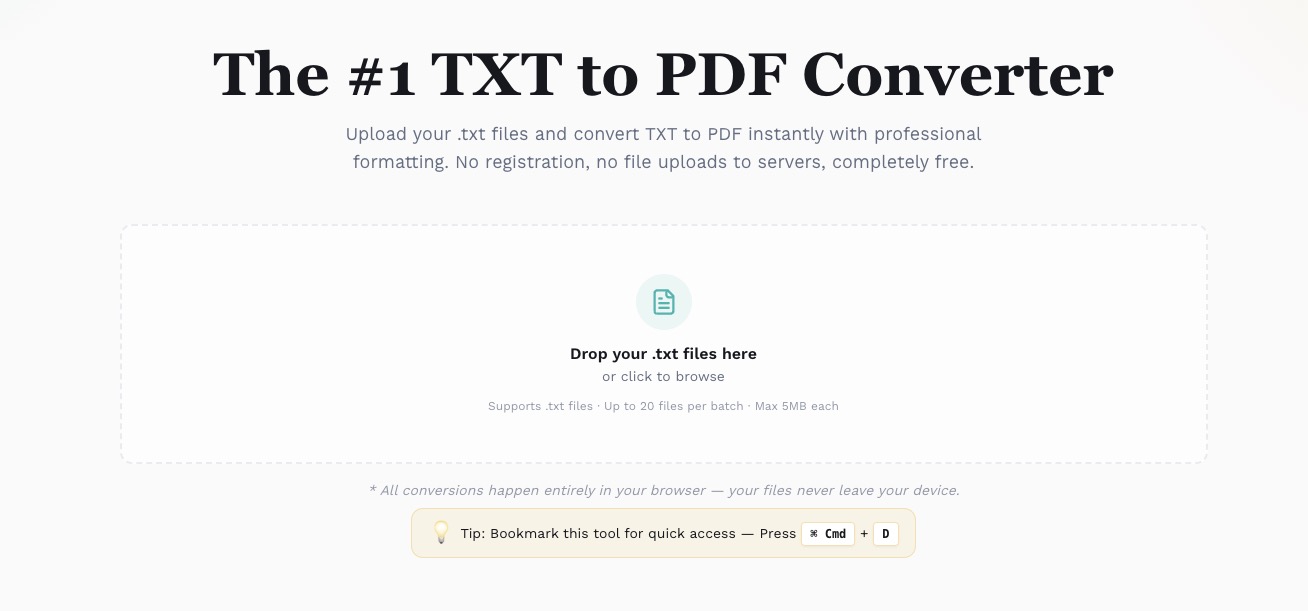
Have an existing .txt file? The TXT to PDF converter handles it without any copy-pasting.
Single File Conversion
- Go to texttopdf.me/txt-to-pdf.
- Click Choose File or drag and drop your
.txtfile onto the upload area. - The tool reads your file, applies default formatting, and generates a downloadable PDF.
- Adjust page size, font, margins if needed, then download.
Batch Conversion (Multiple Files)
Need to convert 5, 10, or 20 text files at once? The batch converter handles up to 20 files per session, each up to 5 MB:
- Upload multiple
.txtfiles at once. - Configure PDF settings (applied uniformly to all files).
- Click Convert All — each file generates its own PDF.
- Download them individually or as a batch.
This is especially useful for:
- Converting a folder of log files into readable PDFs
- Preparing multiple student submissions for review
- Archiving text-based records in a standardized format
Formatting Tips for Professional Results
The difference between a mediocre PDF and a professional one often comes down to small formatting choices:
Document Structure
Use heading levels consistently. Start with H1 for the document title, H2 for major sections, H3 for subsections. Don't skip levels (e.g., jumping from H1 to H4). This creates a logical reading hierarchy and improves accessibility.
Keep paragraphs short. Aim for 3–5 sentences per paragraph. Dense walls of text are harder to read on screen and on paper. A blank line between paragraphs improves scannability.
Typography
Match font to purpose. Use Helvetica for business documents, Times Roman for academic papers, Courier for technical specs. Mixing fonts within a single document rarely looks professional.
Set an appropriate font size. 12 pt is the standard for body text. Use 10 pt for dense documents like contracts or technical manuals. Never go below 9 pt — it becomes difficult to read when printed.
Adjust line height for readability. The default 1.5x works well for most documents. For dense content, try 1.3x. For documents meant to be annotated or reviewed, try 1.8x to leave space between lines.
Page Layout
Set margins for the output medium. For screen-only documents, 40 pt margins (the default) work well. For printed documents, consider increasing to 50–60 pt. If the document will be hole-punched or bound, add extra space on the left margin.
Choose orientation based on content. Portrait works for most text documents. Switch to landscape for wide tables, comparison charts, or spreadsheet-style data.
Common Use Cases
| Use Case | Recommended Settings |
|---|---|
| Meeting notes | A4, Helvetica 12pt, 1.5x line height |
| Academic paper | Letter, Times Roman 12pt, 2.0x line height |
| Legal contract | A4, Times Roman 11pt, 1.4x line height |
| Code documentation | A4, Courier 10pt, 1.3x line height |
| Invoice / Receipt | A4, Helvetica 11pt, 1.5x line height |
| Multilingual document | A4, Noto Sans 12pt, 1.5x line height |
Privacy & Security
TextToPDF.me processes everything client-side using browser-based JavaScript. Here's what that means in practice:
- Your text stays on your device. No data is uploaded to any server.
- No account required. No email, no sign-up, no tracking.
- No file storage. The generated PDF exists only in your browser's memory until you save it to your computer.
- Works offline. Once the page loads, you can disconnect from the internet and the tool continues to work.
This makes it safe for sensitive documents — legal drafts, financial records, medical notes, or any content you wouldn't want on someone else's server.
Frequently Asked Questions
What text formats are supported?
The rich text editor accepts any pasted text and lets you format it with headings, bold, italic, lists, links, images, and tables. The TXT converter specifically handles .txt files.
Does it support non-English text? Yes. Select the Noto Sans font for full Unicode support, including CJK (Chinese, Japanese, Korean), Arabic, Hebrew, Cyrillic, and other scripts.
Is there a page limit? No. You can generate PDFs of any length — from a single page to hundreds of pages.
Is it really free? Yes, completely free with no usage limits, no watermarks, and no premium tiers.
Can I use it on mobile? Yes. The editor and converter are fully responsive and work on phones and tablets. The toolbar adapts to smaller screens with an overflow menu for advanced formatting options.
Start Converting
The fastest way to convert text to PDF is to just do it:
- Open the Rich Text Editor — Write, format, and export as PDF.
- Open the TXT to PDF Converter — Upload
.txtfiles and convert instantly.
No installation, no sign-up, no limits. Your text, your PDF, your device.